


What this guide covers
Balabook connects to AI assistants like Claude and ChatGPT via MCP (Model Context Protocol) — a secure, open standard that lets AI tools read and write data in your Balabook account in real time. Once connected, you can ask questions about your books, create invoices, review expenses, and more, all in plain language.
The only thing you need to provide is one URL — Balabook handles authentication automatically: https://mcp.balabook.com/mcp
Before you start
Claude is available on the Free, Pro, Max, Team, and Enterprise plans; the Free plan is limited to one connector, while on Team and Enterprise plans, the workspace owner must add the connector before members can use it.
ChatGPT connectors are available on the Plus, Pro, Team, and Enterprise plans, and Developer Mode must be enabled before they can be used.
Connecting Claude
Works on the desktop app and claude.ai — Free, Pro, Max, Team, and Enterprise
⚠️Connectors have moved from Settings to Customize. If you open Settings and click Connectors, Claude will show a notice redirecting you to Customize (see screenshot below). Always go to Customize → Connectors.
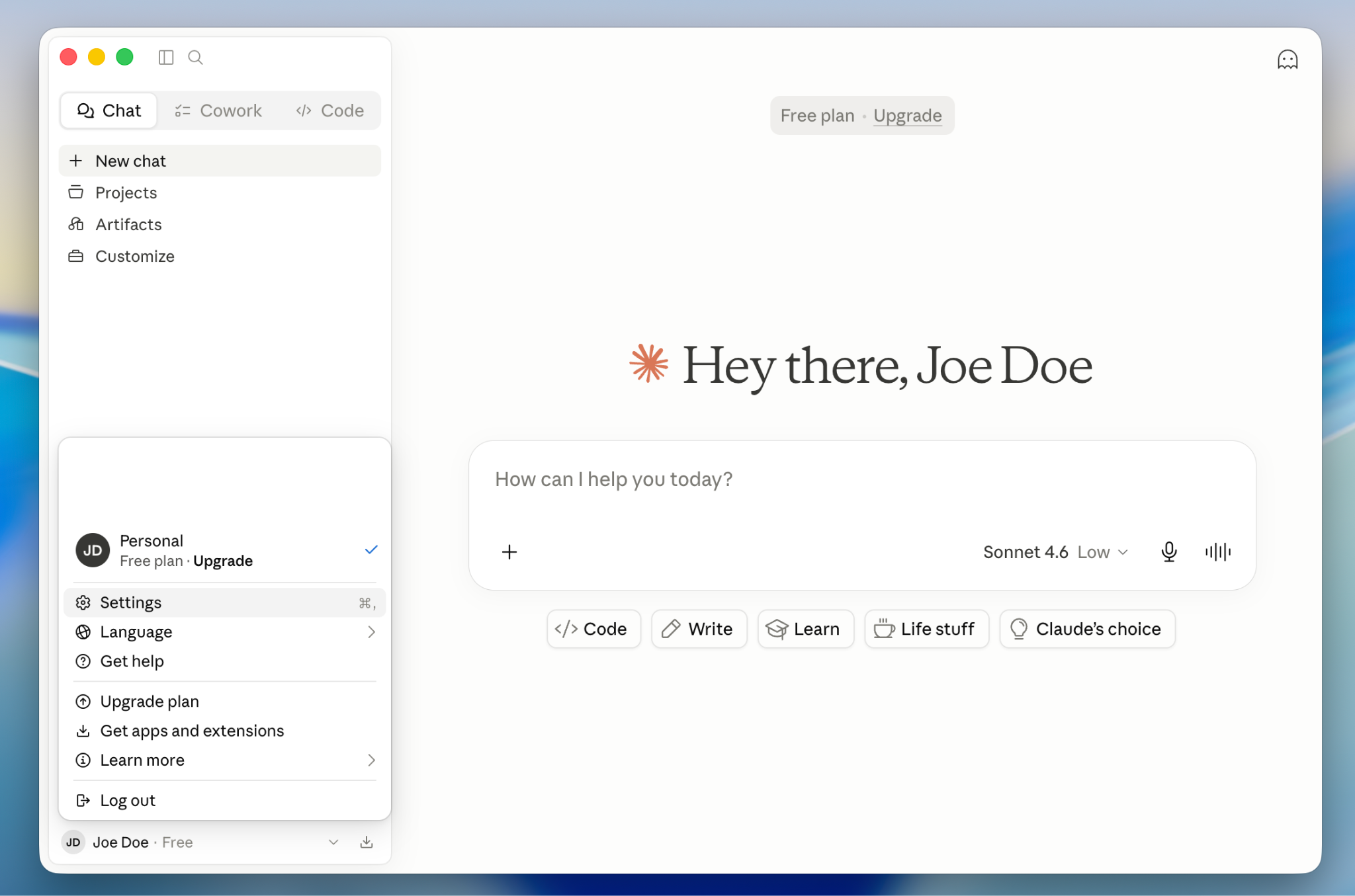
1) Open Customize: Click Customize in the left sidebar of Claude. This is where all connectors are now managed.
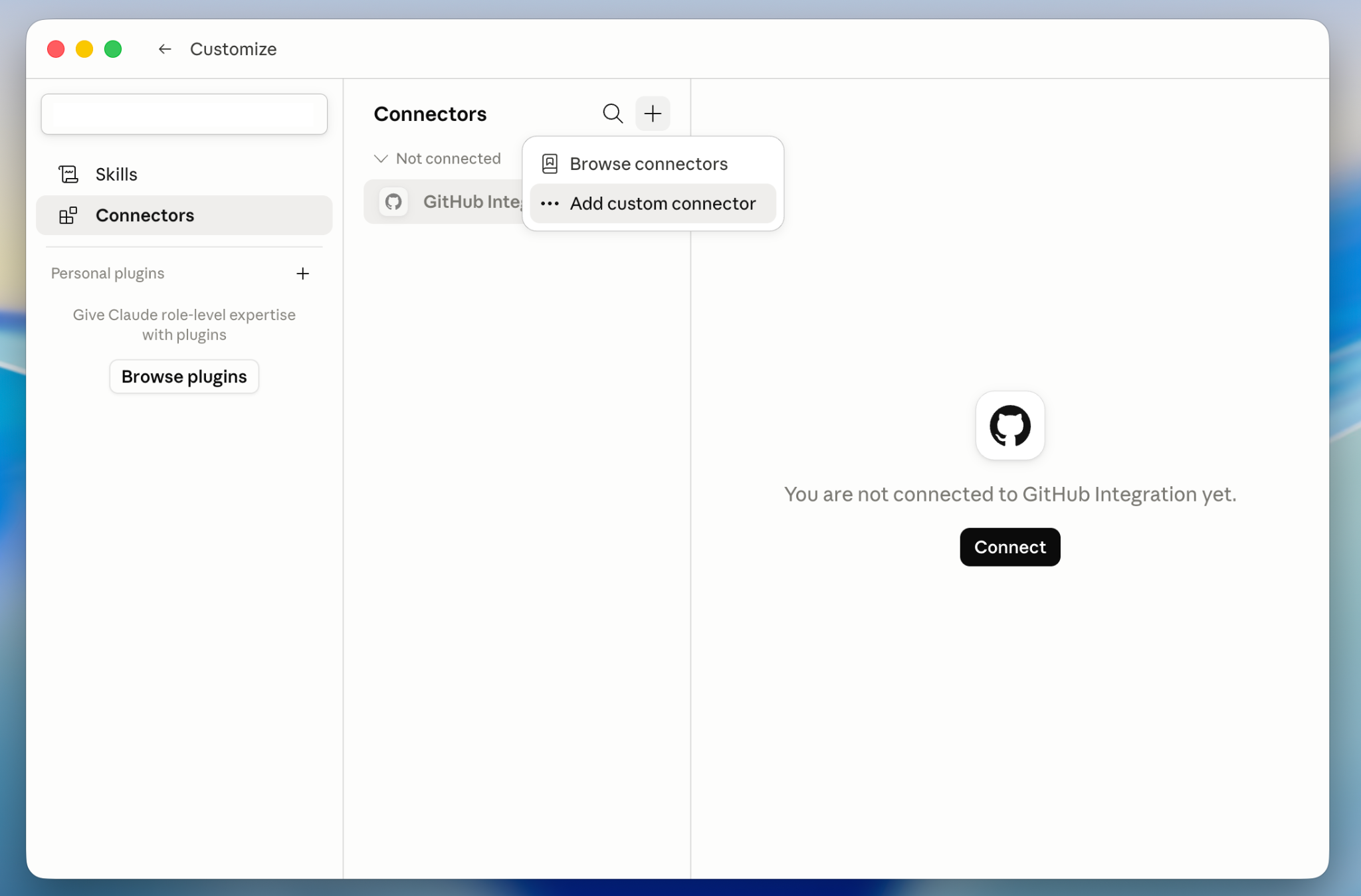
2) Click + and select Add custom connector: In the Connectors panel, click the + icon in the top-right. A dropdown appears with Browse connectors and Add custom connector. Select Add custom connector.
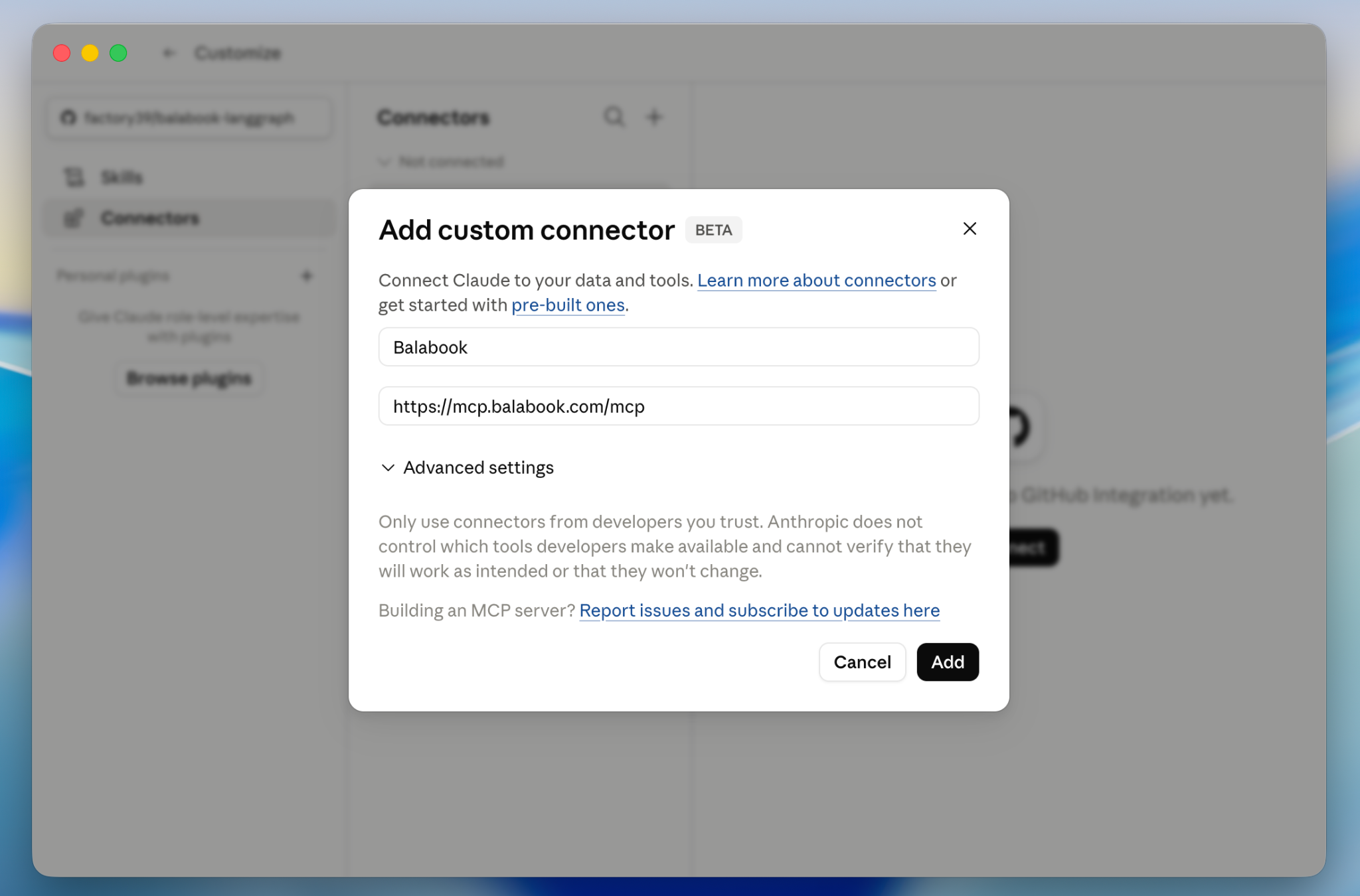
3) Enter the Balabook name and URL: A dialog titled 'Add custom connector' will appear. Enter Balabook as the name and paste the URL below into the URL field. Then click Add.
https://mcp.balabook.com/mcp

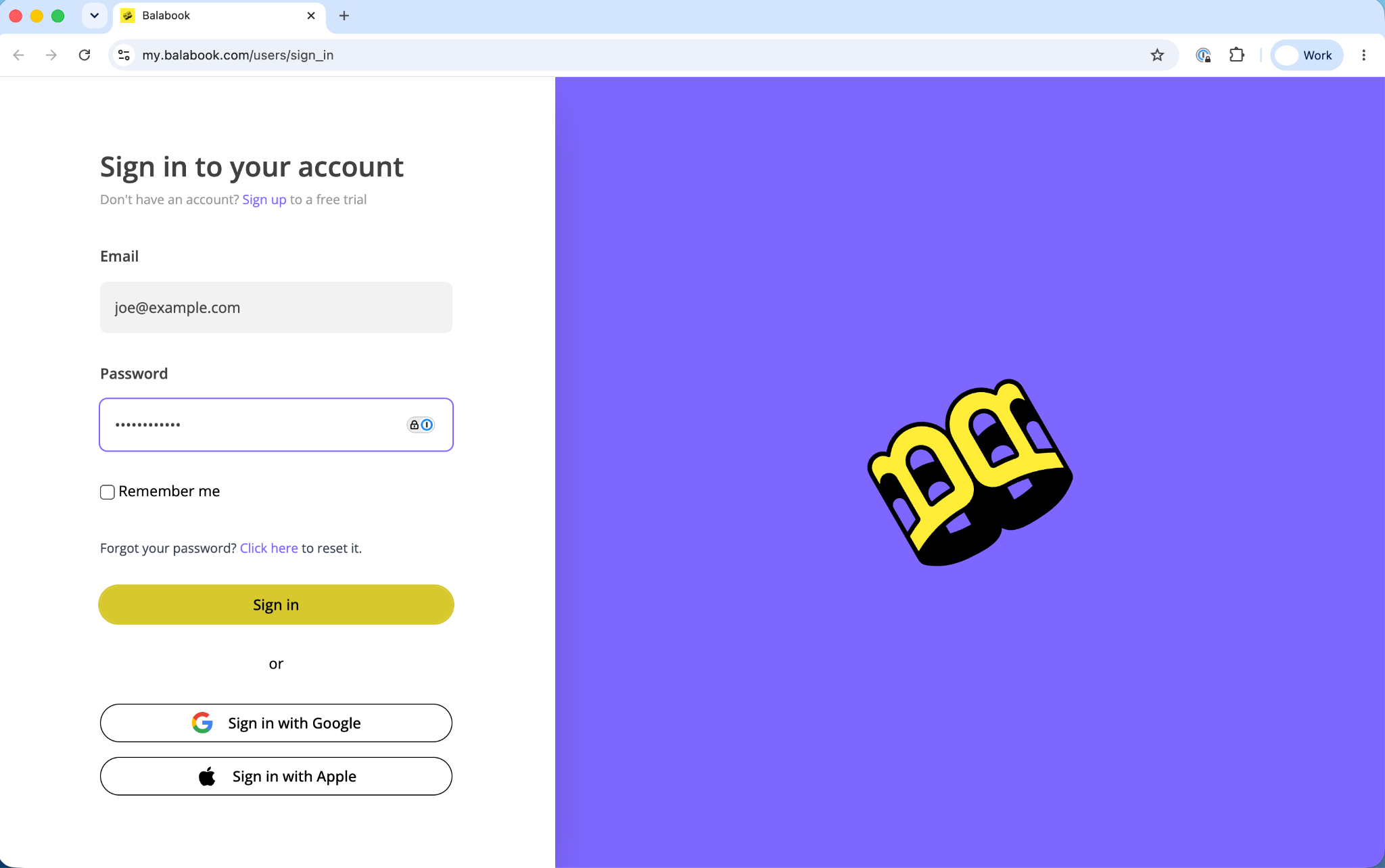
4) Sign in to Balabook: Claude opens a new browser tab and redirects you to the Balabook sign-in page automatically. Sign in with your email and password, or use Sign in with Google or Sign in with Apple.
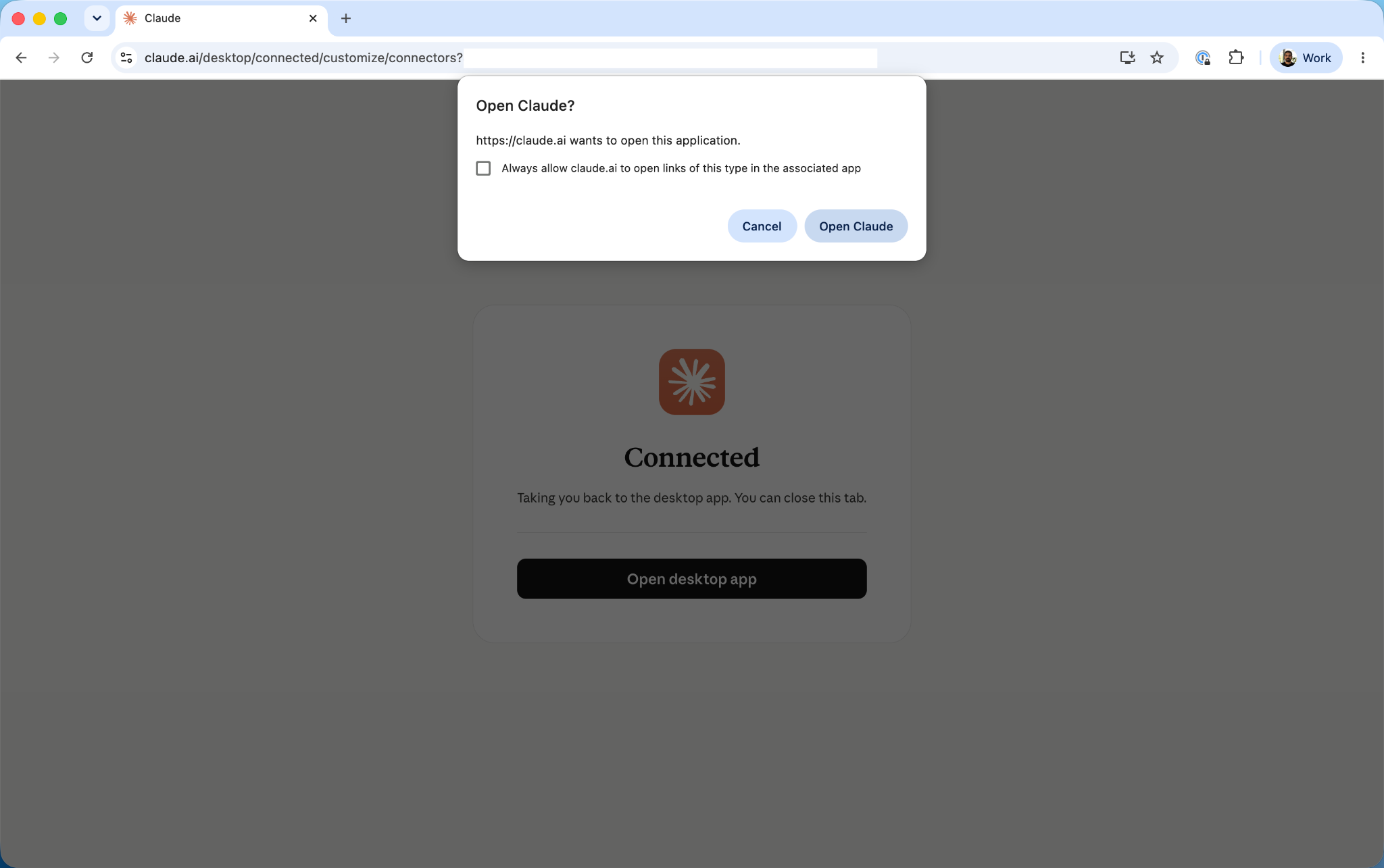
5) Return to Claude: After signing in, Balabook redirects you back to Claude. If using the desktop app, your browser will show a 'Connected' confirmation and prompt you to open Claude — click Open Claude.

6) You are connected!: Balabook now appears in your Connectors list with a Connected badge. You can see and configure exactly which tools Claude is allowed to use — all 52 Balabook tools are listed with individual permission controls.
🔒 You can control permissions per tool. Click any tool in the list to set it to: Always allow, Ask each time, or Never allow — giving you full control over what Claude can do in your Balabook account.
Team and Enterprise plans:
⚠️ On Team and Enterprise plans, an Owner must add Balabook to the organization first. Members then connect their own Balabook accounts individually — Claude only accesses data each user has permission to see.
Owner setup — do this once:
- Go to Organization Settings → Connectors → Add → Custom → Web.
- Enter https://mcp.balabook.com/mcp and click Add.
- Balabook will appear in the organization connector list for all members.
Each member then connects individually:
- Go to Customize → Connectors and find Balabook (labelled Custom).
- Click Connect, sign in to your Balabook account, and authorize access.
Connecting ChatGPT
Requires Plus, Pro, Team, or Enterprise — and Developer Mode
ℹ OpenAI renamed 'Connectors' to 'Apps' in December 2025. In your ChatGPT settings, you will find them under Apps → Advanced settings.
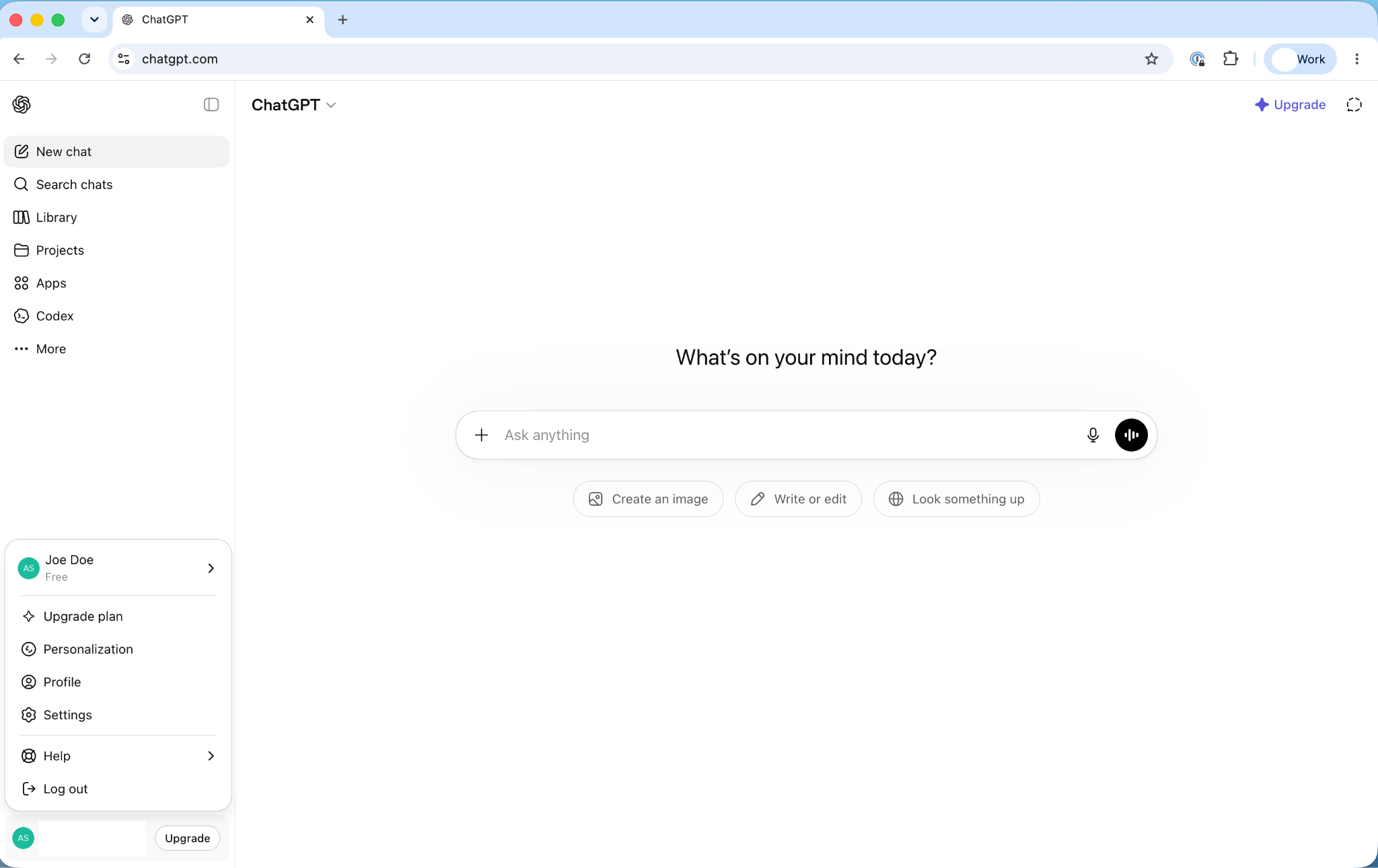
1) Open Settings → Apps: In ChatGPT, click your profile icon or name at the bottom-left and select Settings. Then click Apps in the left panel.
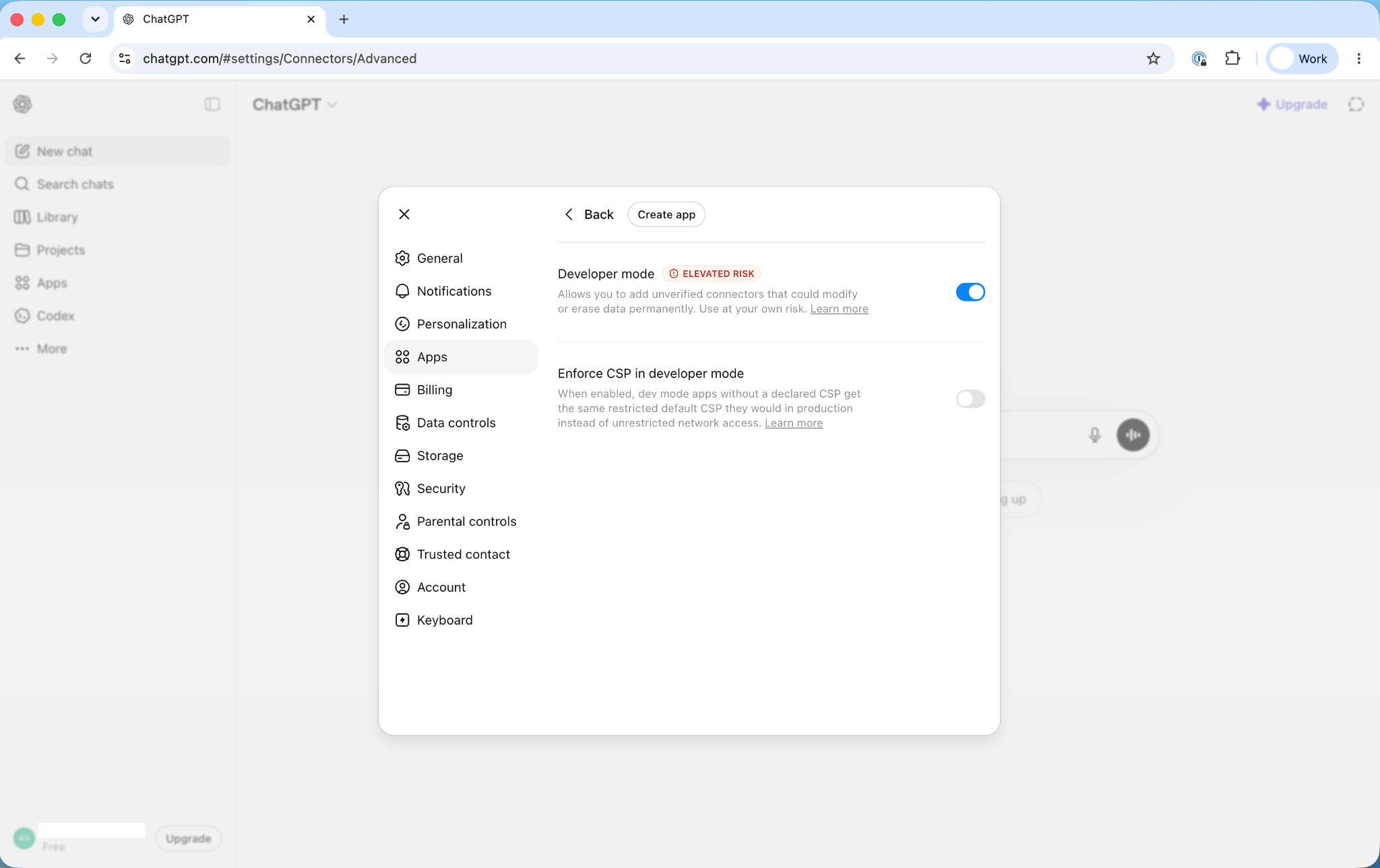
2) Enable Developer Mode: Click Advanced settings inside the Apps panel. Toggle Developer mode ON. Accept the elevated-risk warning — this is expected and simply allows custom MCP servers to be added.

3) Click Create app: Once Developer Mode is on, a Create app button appears at the top of the panel. Click it. A 'New App' dialog will open.
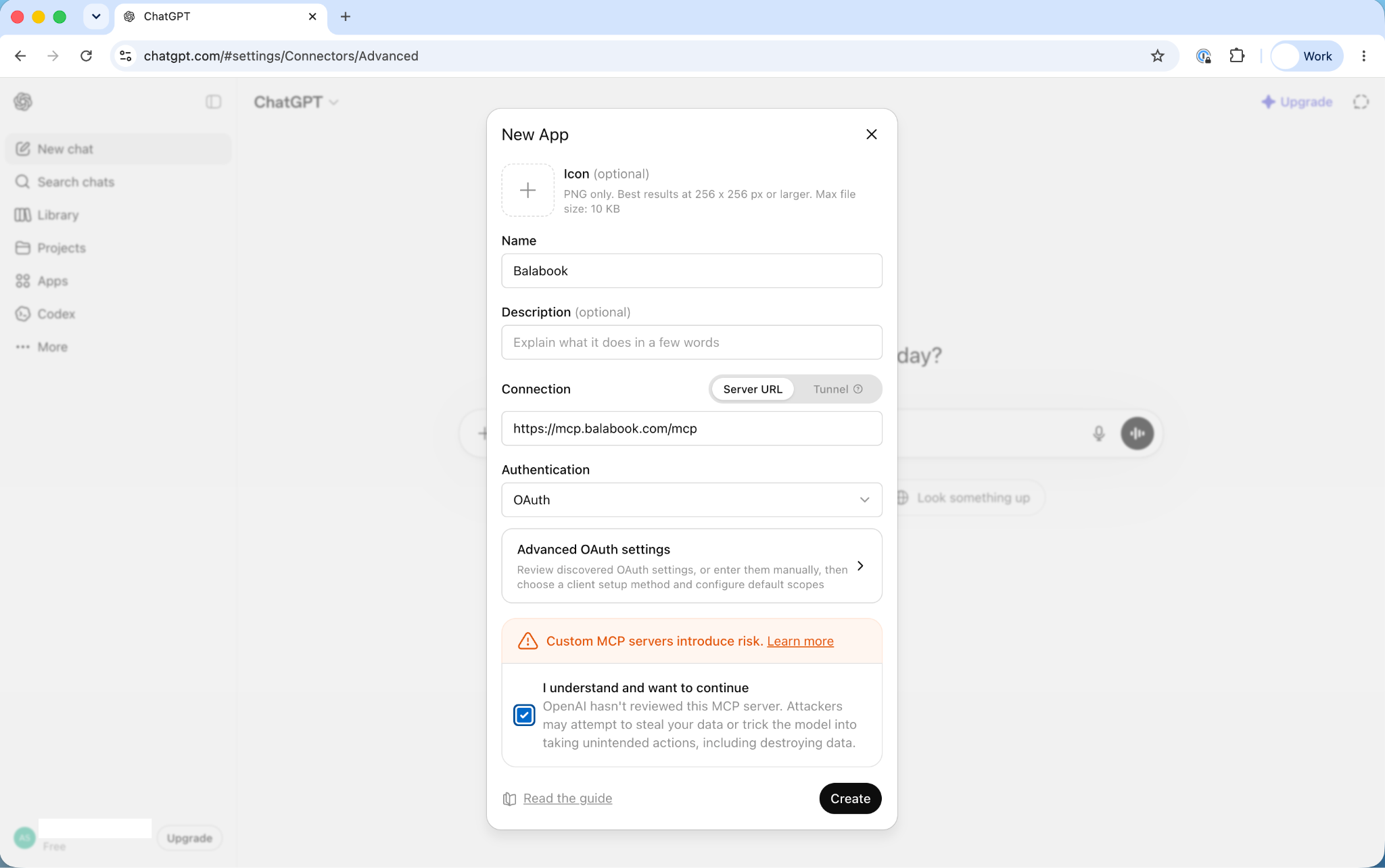
4) Fill in the app details: Enter the following into the dialog, then tick 'I understand and want to continue' and click Create:
Name: Balabook
Description:My Balabook accounting data (optional)
Connection → Server URL:https://mcp.balabook.com/mcp
Authentication:OAuth (auto-detected)

5) Sign in to Balabook: ChatGPT will show an 'Add Balabook to ChatGPT' prompt with a Sign in with Balabook button. Click it and sign in with your Balabook credentials.
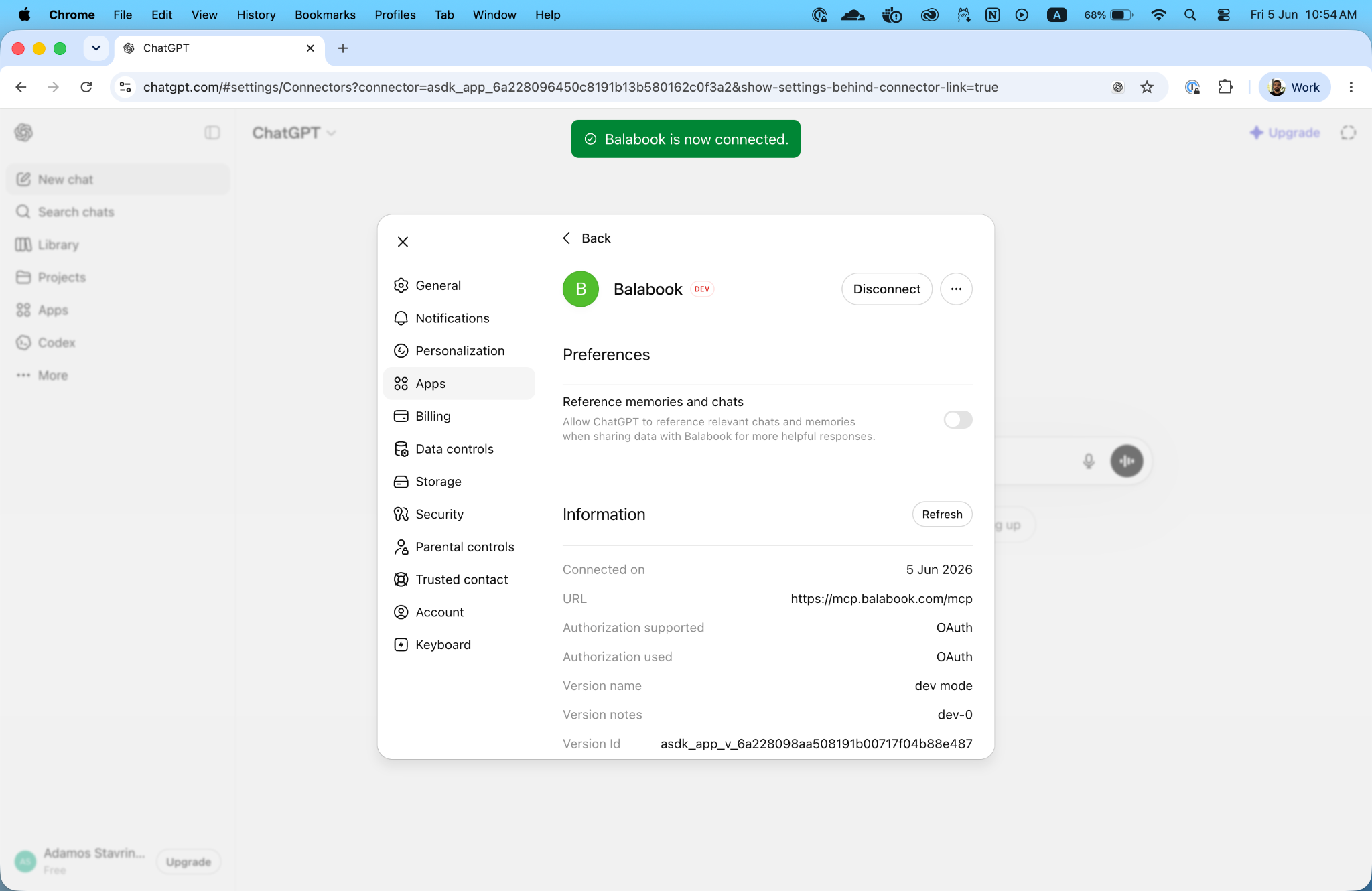
6) Done!: You will be returned to ChatGPT with a 'Balabook is now connected' confirmation banner at the top. The connection details (URL, OAuth, connected date) are shown in the connector info panel.
ℹ Note: The 'DEV' badge on the connector is normal — it indicates it was added via Developer Mode and does not affect functionality.
What you can ask once connected
Just ask in plain language. Your AI assistant will use the right Balabook tools automatically.
-Show me all unpaid invoices from this month: Lists outstanding invoices with amounts and due dates
-Create an invoice for Acme Ltd for 1,500 euros due in 30 days:Drafts and saves the invoice in Balabook
-What were my total expenses in Q1?:Summarises expense totals for the first quarter
-List all partners with outstanding balances:Shows customers or vendors with amounts owed
-How did last month's revenue compare to the month before?:Pulls and compares monthly revenue figures
-Add a journal entry for the office rent payment:Creates the double-entry record in your books
-Approve the latest draft invoice:Finds and approves it in Balabook
Troubleshooting:
"API access is not available for your account": Your Balabook account needs to be on the Growing plan. Go to account settings to upgrade or contact support@balabook.com.
The sign-in page did not open after clicking Connect / Add: Your browser may be blocking pop-ups from claude.ai or chatgpt.com. Look for a pop-up blocked icon in the address bar, allow pop-ups for those sites, and try again.
Balabook appears connected but tools are not showing (Claude): Go to Customize → Connectors, remove Balabook, and add it again with the same URL. Make sure you complete the sign-in step when prompted.
I see a DEV badge next to Balabook in ChatGPT: This is normal and expected. It means the connector was added via Developer Mode. It does not affect functionality or security.
ChatGPT Plus or Pro — some write actions are not working: Full write access (creating invoices, recording transactions, etc.) requires a ChatGPT Business or Enterprise workspace. Individual Plus and Pro users can read and query data but cannot write back. Claude does not have this limitation.
Disconnecting Balabook
You can revoke access at any time from either side.
- From Claude: go to Customize → Connectors, find Balabook, and click Remove.
- From ChatGPT: go to Settings → Apps, find Balabook, and click Disconnect.
- From Balabook: go to Profile Settings → Connected Applications, find the AI assistant entry, and click Revoke. This takes effect immediately.
Need help?
Contact our support team and mention which AI assistant you are using and what happened.
Email: support@balabook.com
In-app chat: Click the chat bubble inside Balabook


